How to Use the Secret Google Chrome Reader Mode
While it looks as if Google Chrome doesn’t have Reader Mode, it actually does have the feature. Here’s how you can use it on both desktop and mobile versions of the web browser.
How to Use the Secret Google Chrome Reader Mode
I’m sure a good number of you are aware that Google Chrome is lacking a Reader Mode, but it’s not to say that the popular web browser doesn’t support it. It’s actually there if you dig around deep enough. While we’re unsure why it’s kept hidden, it does work as it’s expected to.
For those of you who aren’t aware, Reader Mode is basically a simplified view for web pages that work best for articles and other written content so you can have an easier time reading it.
If you want to make use of the secret Google Chrome Reader Mode, follow the steps below here for desktop and mobile versions of the browser:
Google Chrome Reader Mode on Desktop
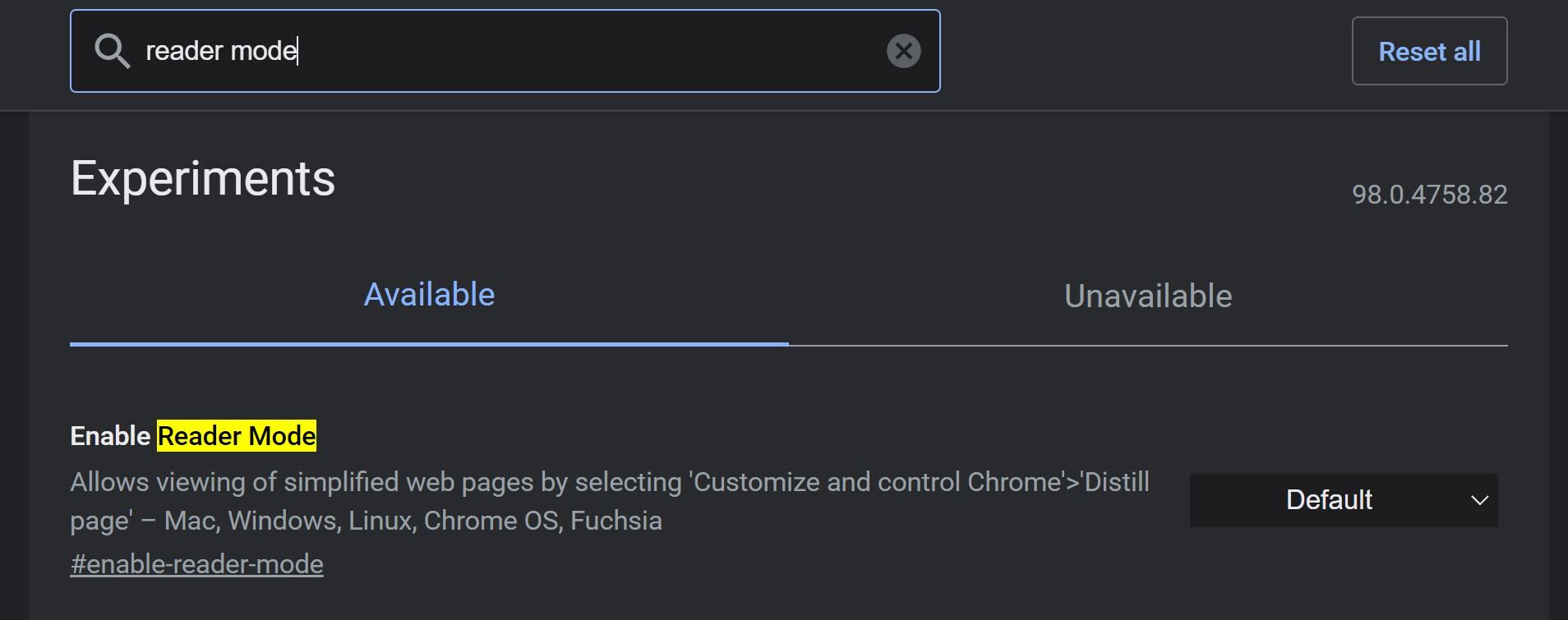
- Launch Google Chrome and type “chrome://flags” in the address bar
without the quotation marks Type Reader Mode in the search box on the top of your screen - Click Default, switch to Enabled, and proceed to relaunch the browser
Google Chrome Reader Mode on Mobile
- Launch Google Chrome and select the More menu
- Head on over to Settings > Accessibility
- Check Simplified view for web pages
On desktop, if Reader Mode can be enabled, an icon will popup in the address bar, which can be clicked to turn it on. As for mobile, there will be a prompt asking you if you want to switch to a simplified view, which will enable if you press “View”. That’s all there is to it, and I hope this guide helps you out for a much better, tidier reading time.


Be sure to get the latest version of the web browser as a number of security flaws were fixed. Click right here to learn more about it. If you are on Windows 11 and find the Xbox Game Bar annoying, find out how to disable it by clicking here instead.