How to Disable Xbox Game Bar on Windows 11

The Xbox Game Bar was introduced in Windows 10 and made its way to Windows 11 as well. While it can be pretty handy, not everyone uses it. If you’re looking to disable it, here’s an easy guide to do so.
How to Disable Xbox Game Bar on Windows 11
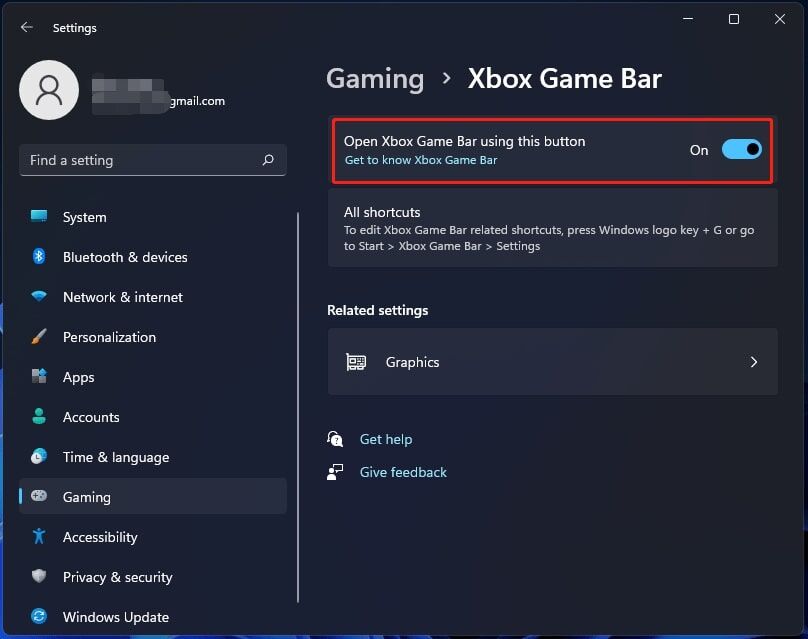
There are two ways to go about it; one is a temporary while the other is permanent. In the case of the former, you can simply head to Settings to temporarily disable it. As for the latter, it can seem a little tricky but follow the step-by-step guide below and you’ll be done in a jiffy.
- Go to Settings > Gaming > Xbox Game Bar and then select the toggle next to Open Xbox Game Bar using this button on a controller, which will turn it off.
- Afterwards, head back to Settings > Apps > Apps & Features and search for Xbox Game Bar.
- Click on the Menu button, then click on Advanced. Change the setting under Background apps permissions to Never and you’re done.
And with that, you have successfully disabled it permanently. There is no need to uninstall or delete anything, especially in case it might cause more problems down the road. Hope this guide helps you out.
Having issues with certain features in Windows 11? A lot of there are broken, find out why by clicking right here.




![[UPDATED: Statements] Forza Horizon 6 Dev Drops Multi-Millennial Ban Hammer To Cheater Before The Game Has Even Released - 59](https://cdn.pokde.net/wp-content/uploads/2026/05/12022254/fh6leakpermabancover-420x280.jpg "[UPDATED: Statements] Forza Horizon 6 Dev Drops Multi-Millennial Ban Hammer To Cheater Before The Game Has Even Released - 60")