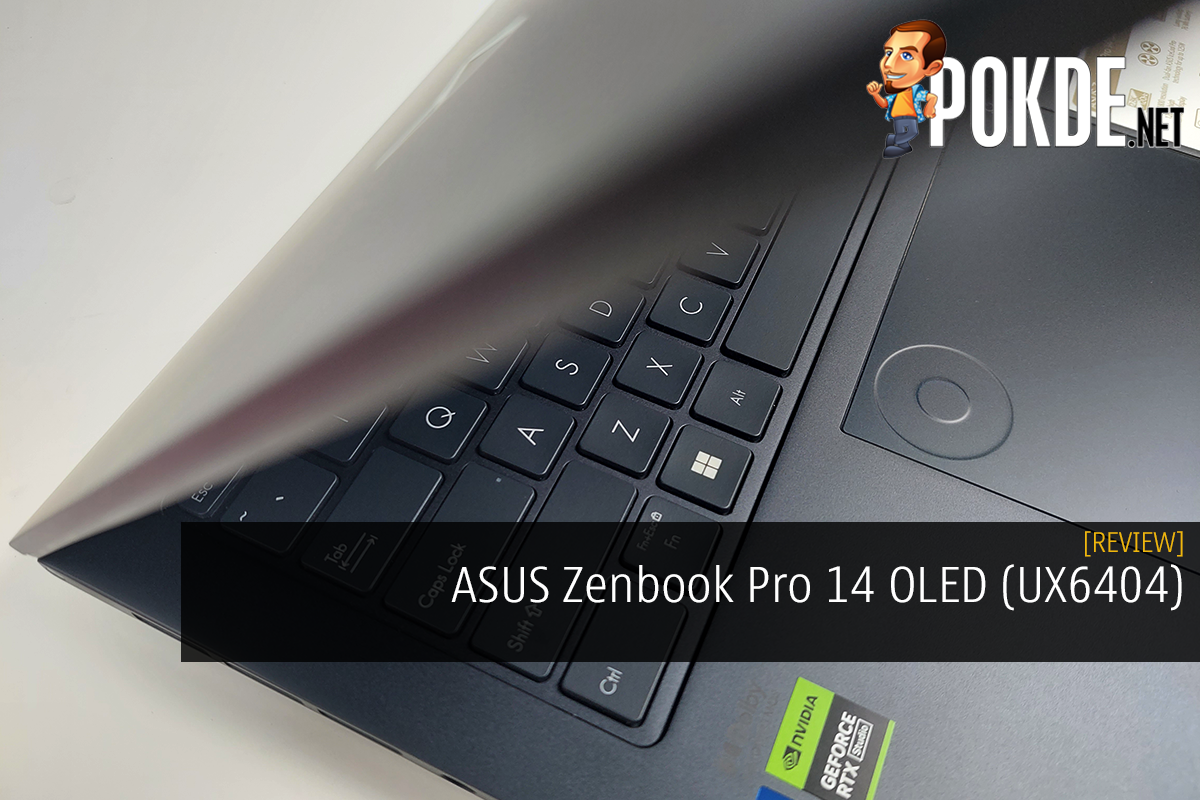
ASUS Zenbook Pro 14 OLED (UX6404) Review – Size-Defying Performance
-
Appearance - 8.5/10
8.5/10
-
Efficiency - 8.3/10
8.3/10
-
Features - 8.5/10
8.5/10
-
Materials - 8/10
8/10
-
Performance - 8.5/10
8.5/10
-
Portability - 8.5/10
8.5/10
-
User Experience - 8.5/10
8.5/10
-
Value - 8/10
8/10
Summary
The ASUS Zenbook Pro 14 OLED will be a very strong candidate if you want the best of features, portability and performance for your next laptop.
Overall
8.4/10Pros
+ Tons of compute power in a small chassis
+ Touch-enabled OLED panel
+ Full-size UHS-II card reader onboard
+ ASUS DialPad provides extra layer of control
+ Decently-tuned speakers
Cons
– Fingerprint magnet
– DialPad requires considerable learning curve
– ProArt software is somewhat obscured
– Full Speed fan profile is hidden in ProArt software only
Technically, the ASUS Zenbook Pro 14 OLED is an all-new model coming from the Taiwanese laptop maker. The closest lineage you can find is in fact the dual-screen Zenbook Pro 14 Duo OLED, which understandably isn’t everyone’s taste due to its unconventional form factor (plus, typing off-center can be troubling for some).
So this time around ASUS has reeled themselves in to create a more conventional version of the 14-inch creator laptop, and with the more traditional layout – that didn’t mean the company stopped putting their fair share of unique innovations in it. So today we’ll be looking at this laptop, and see if it’s a viable option for those who prefer a less “gamery” version of the Zephyrus G14.
Unboxing


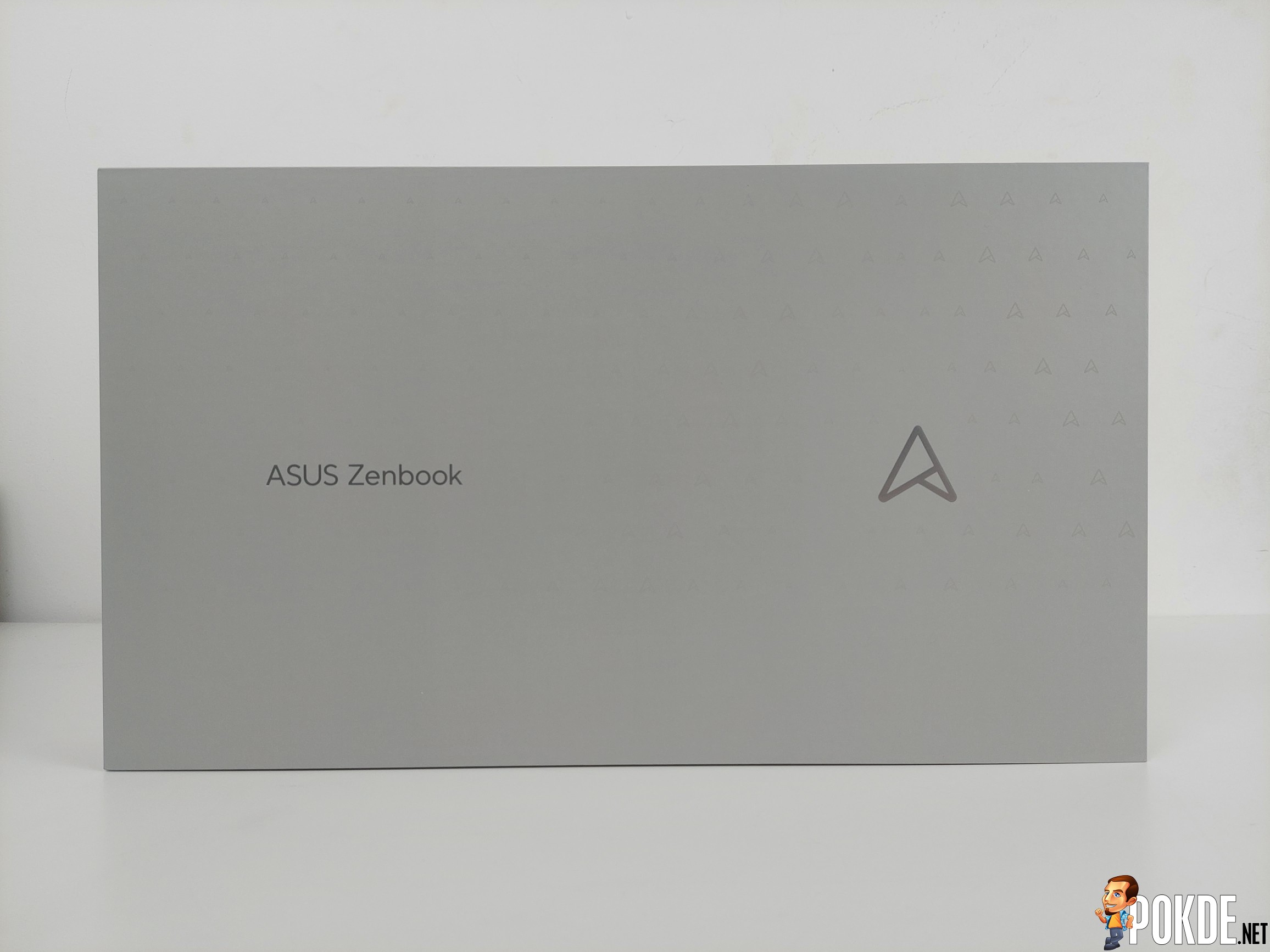
Unlike most ASUS laptops, the box packaging doesn’t involve a lift-open design; instead, it’s using two cardboard boxes to hold the smaller box that houses the laptop itself. You also get a separately-packaged laptop sleeve in the box.

In the box you get these items:
- Power cable (UK, Type G)
- DC power supply (200W)
- USB to LAN adapter
- ASUS OLED leaflet
- MyASUS leaflet
- User guide
- Quick start guide
- Laptop sleeve
- ASUS Zenbook Pro 14 OLED itself
Walkaround
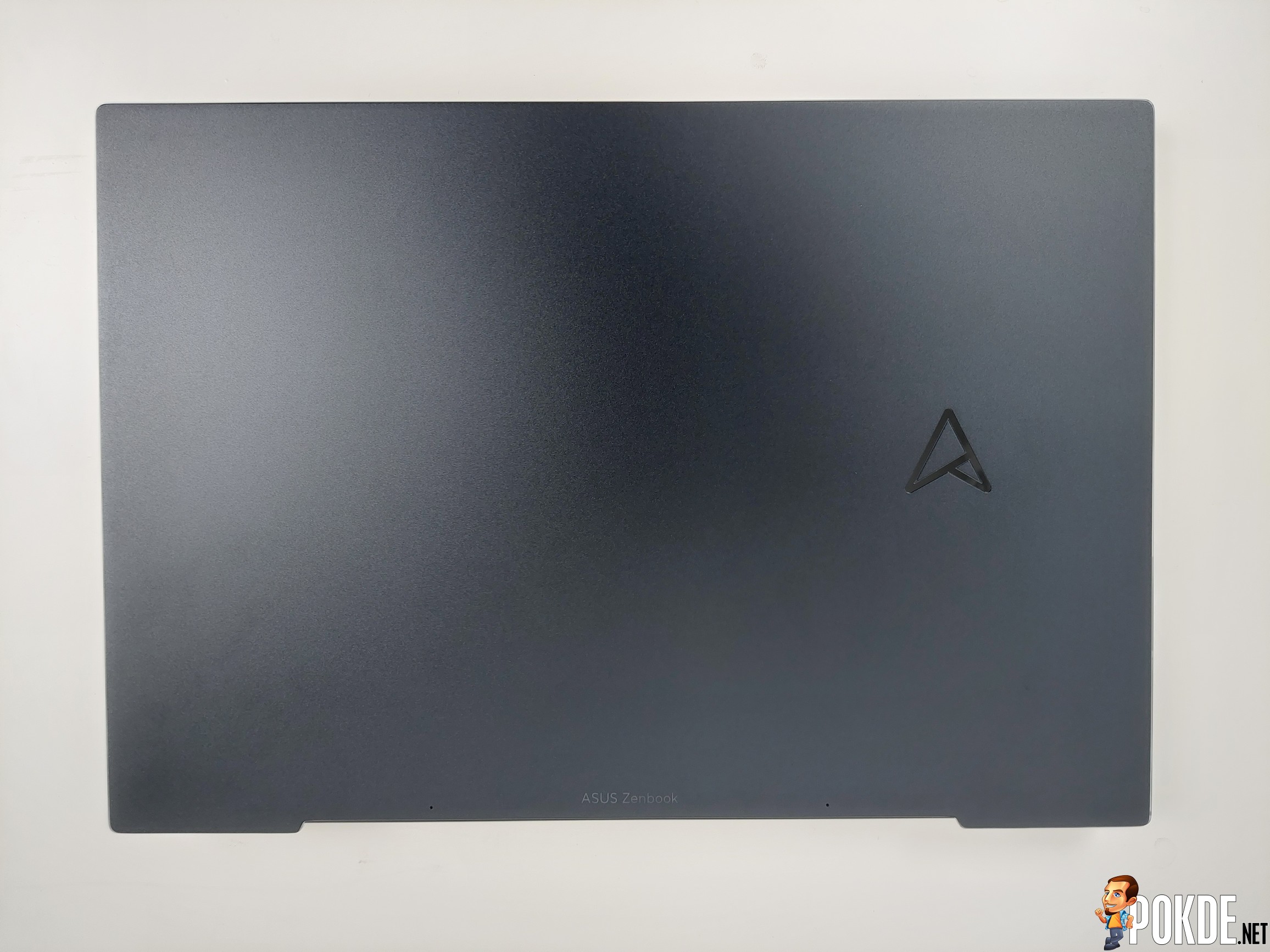
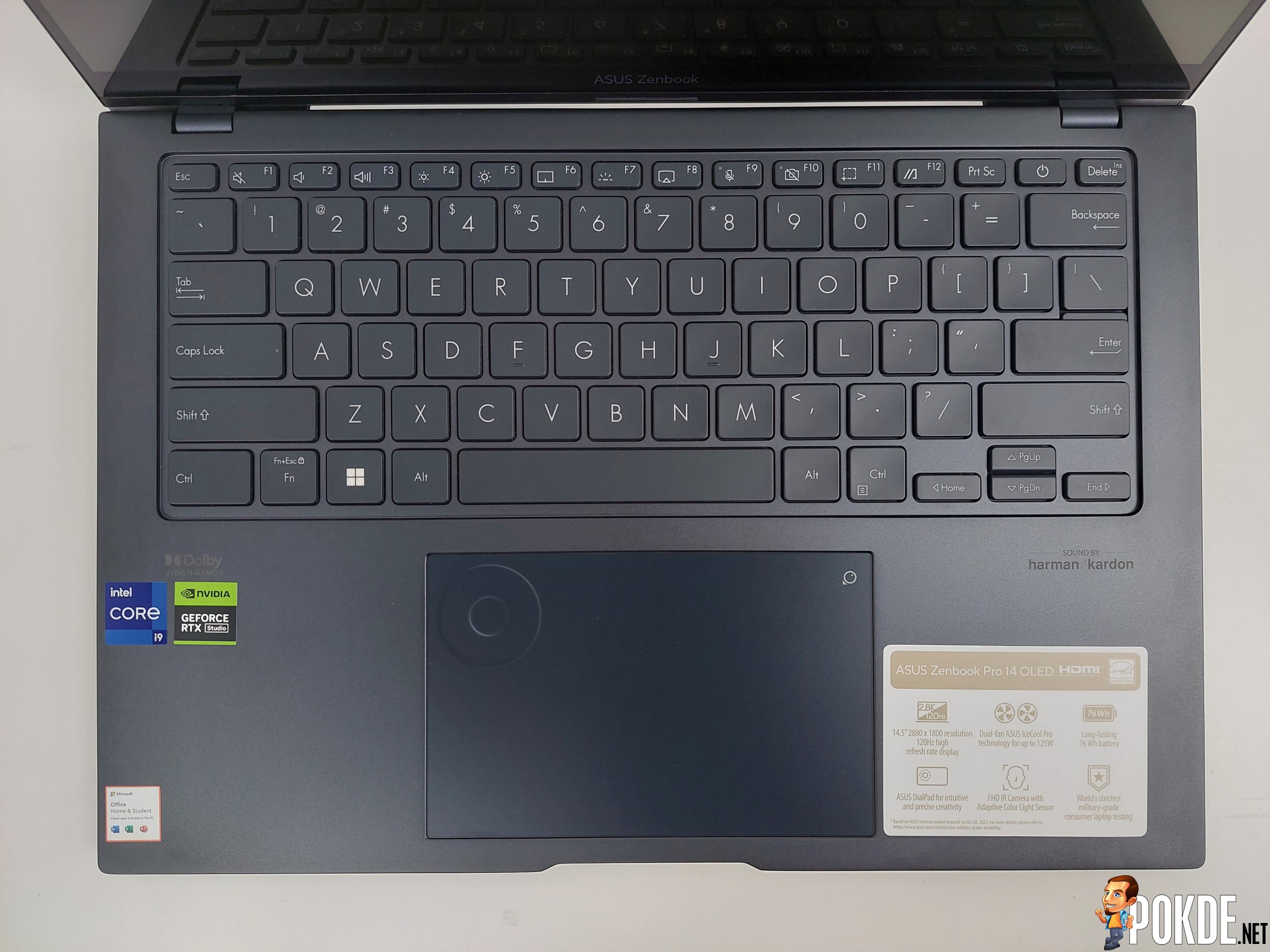
Unlike the newly-redesigned Zenbook S 13 OLED, the Zenbook Pro 14 OLED still uses the previous design similar to the AMD-powered Zenbook S 13 OLED with a small ‘A’ insignia with a small “ASUS Zenbook” written on the lower edge of the lid. The keyboard however takes cues from the new Zenbook S with the recessed design – which could potentially trap dust around the inner edge. Moving downwards, the touchpad features a slightly recessed ring that functions as a virtual dial wheel when you activate it by swiping from the top-right corner.
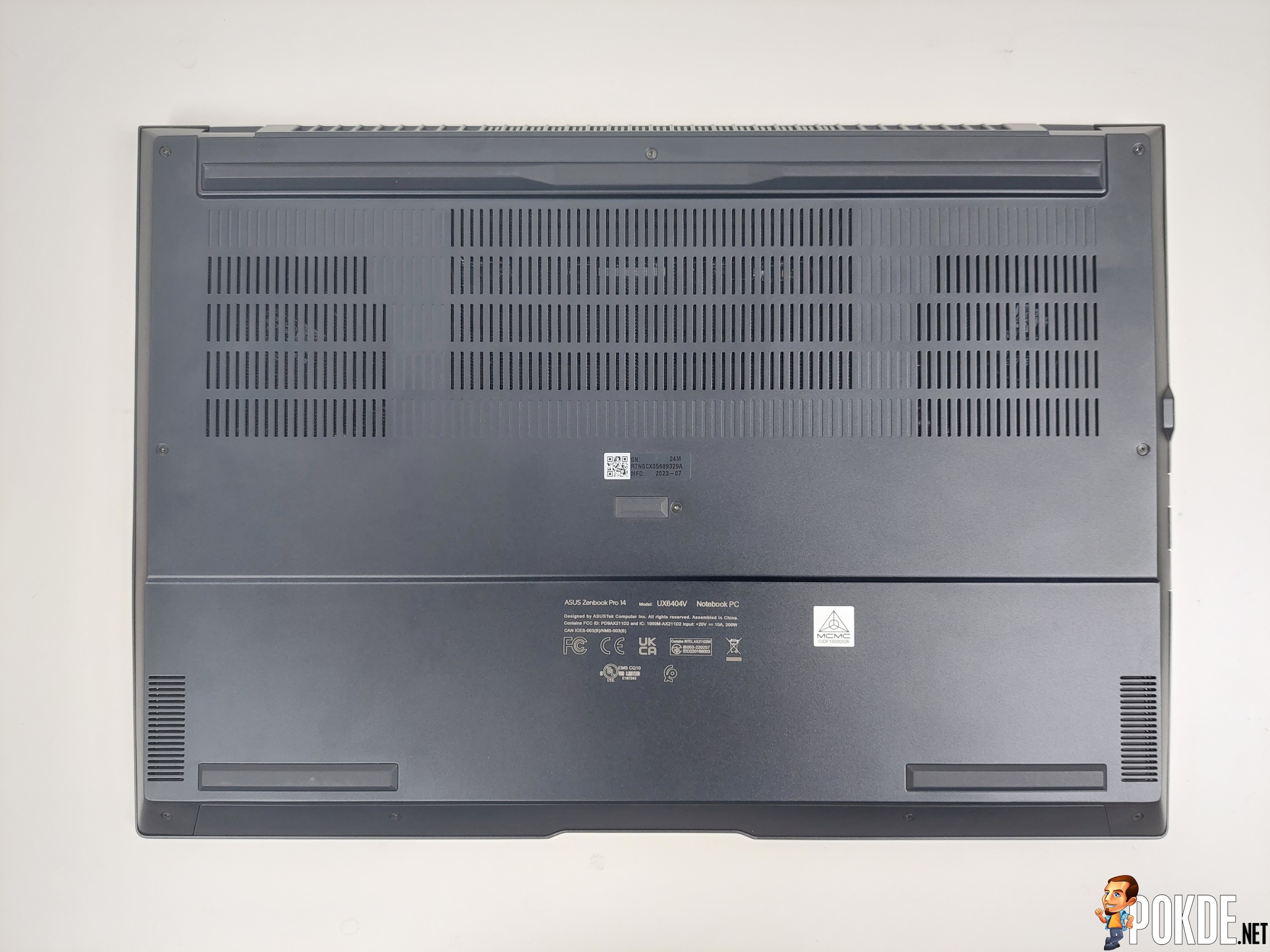
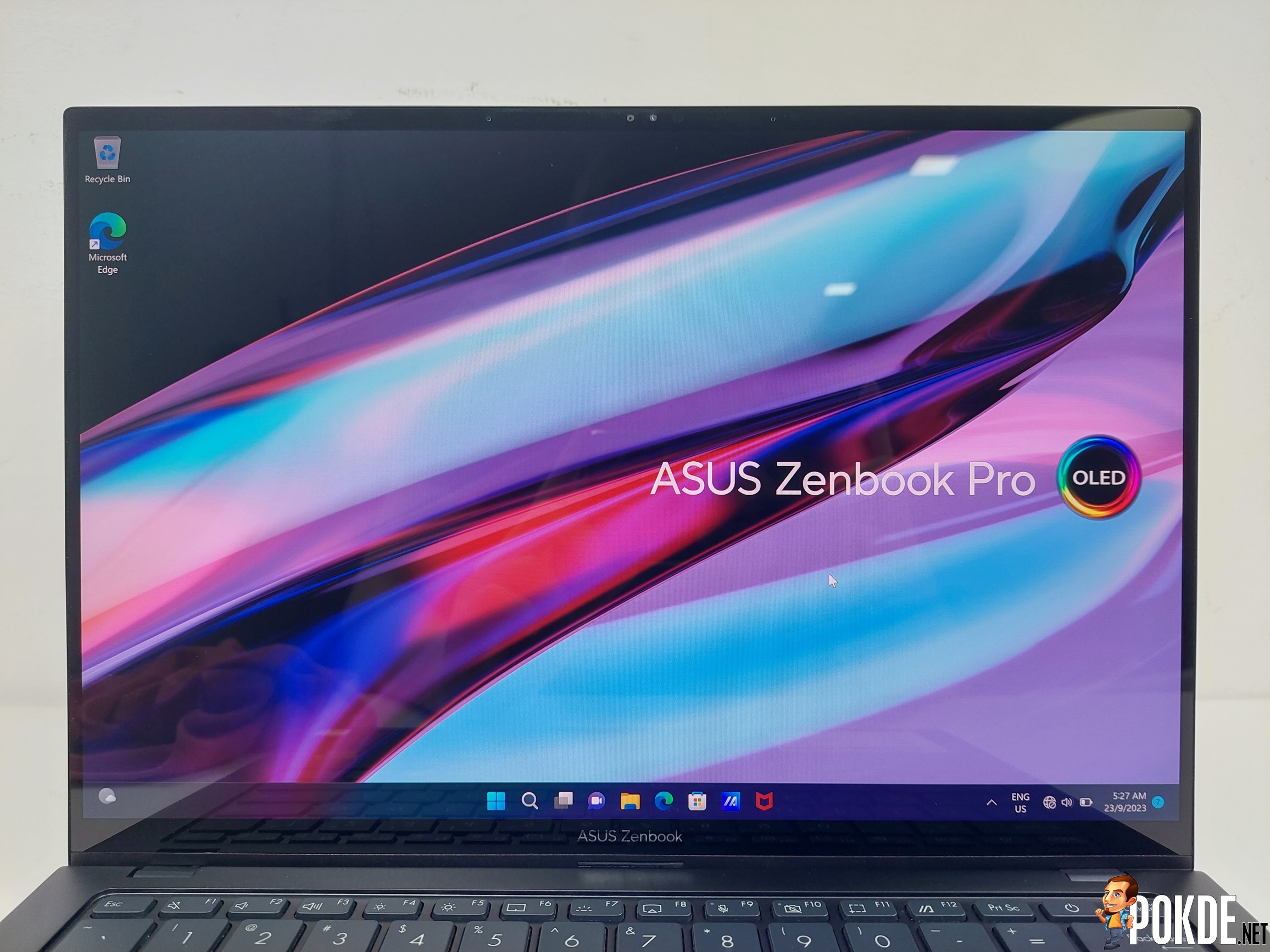
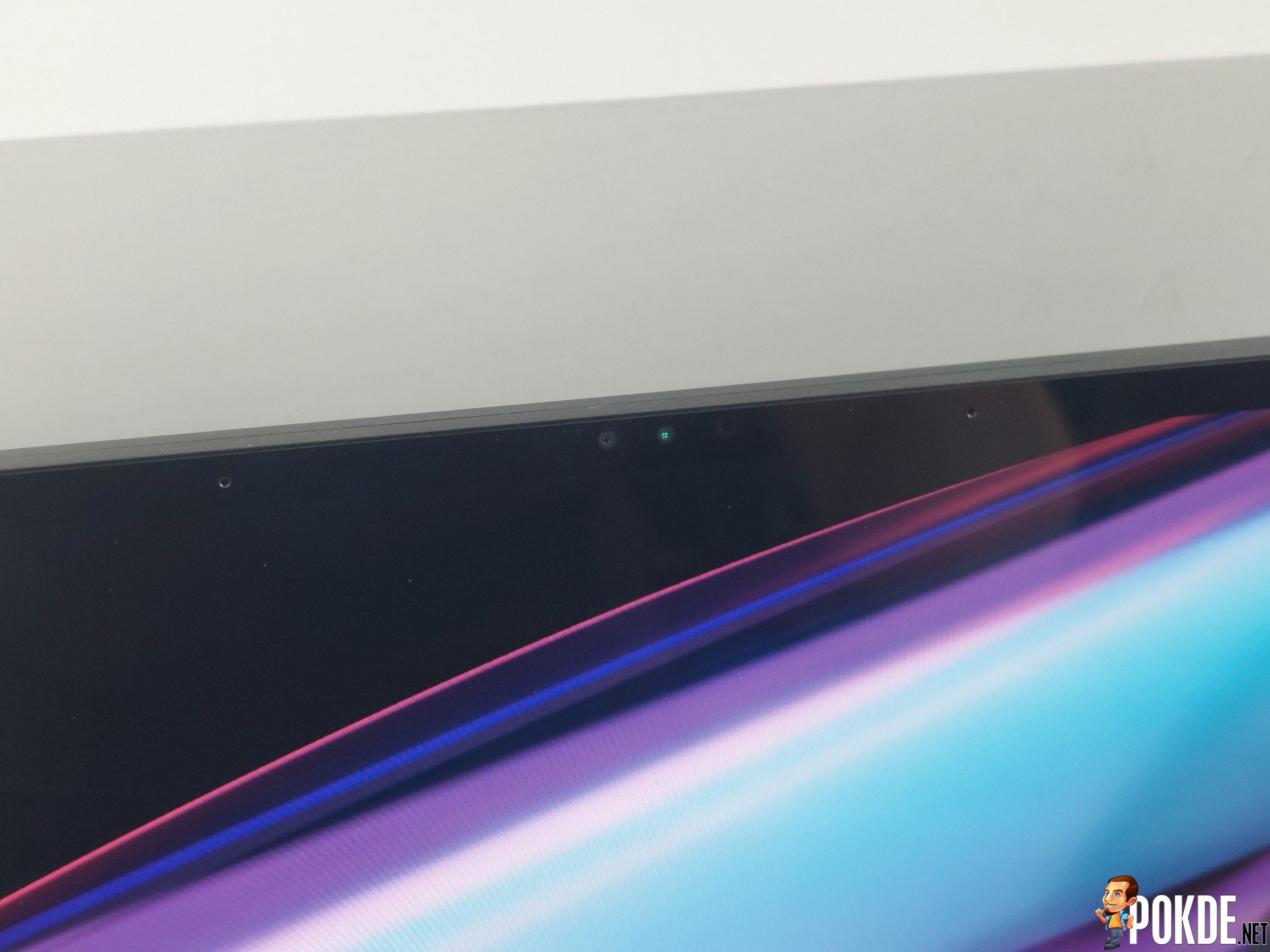
Underside is where you’ll see this laptop is the real deal. There’s plenty of intake perforations here, giving you first hints on the heat and power this relatively small laptop is designed to accommodate (spoiler alert: a lot). Bottom-firing speakers as usual, sitting on the two lower corners. In the front you’re greeted with the 14.5-inch 2.8K 120Hz OLED display, which supports touch inputs as well; up top is the camera and microphone array, and a secondary IR scanner that allows Windows Hello sign-in.
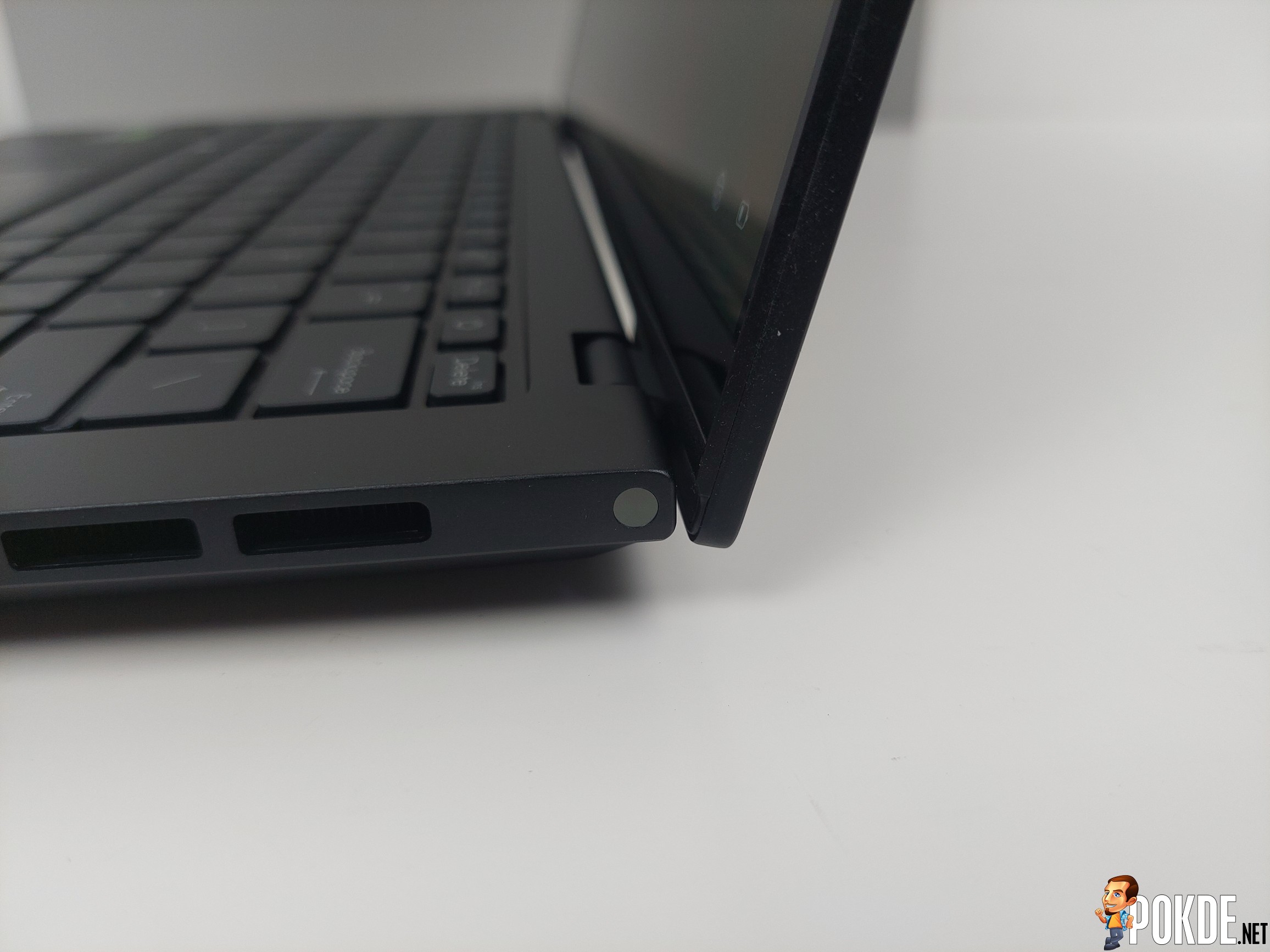
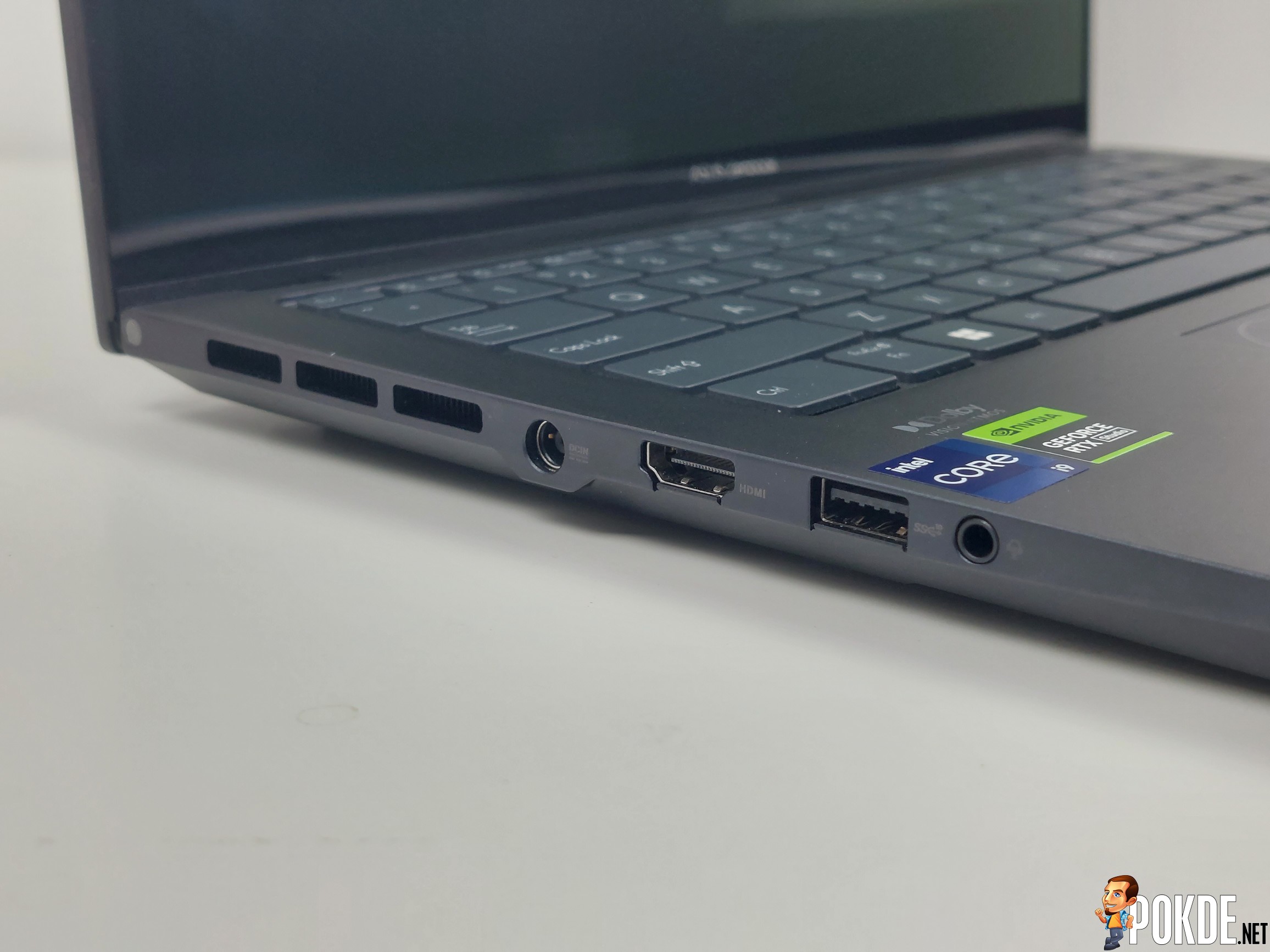
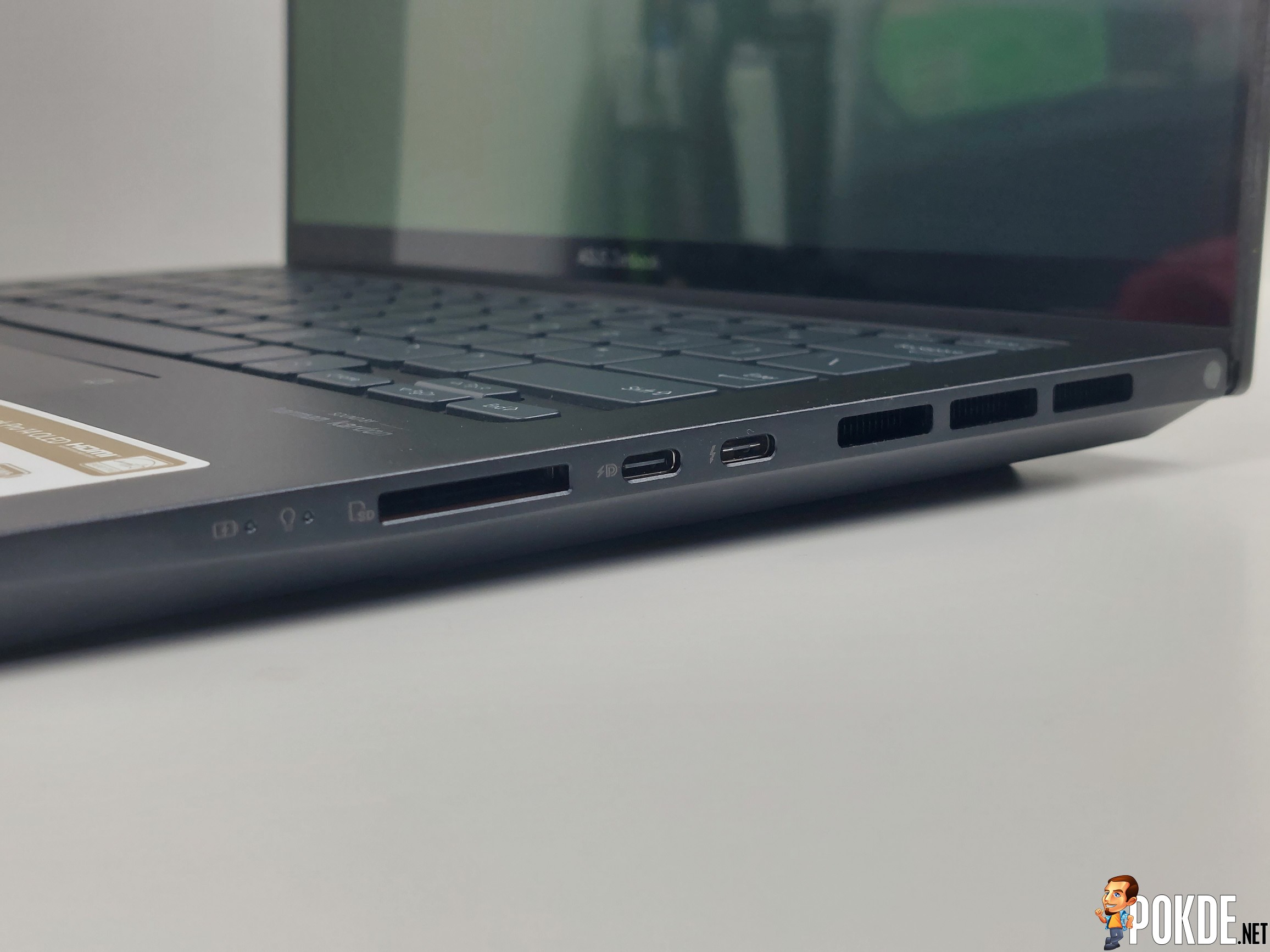
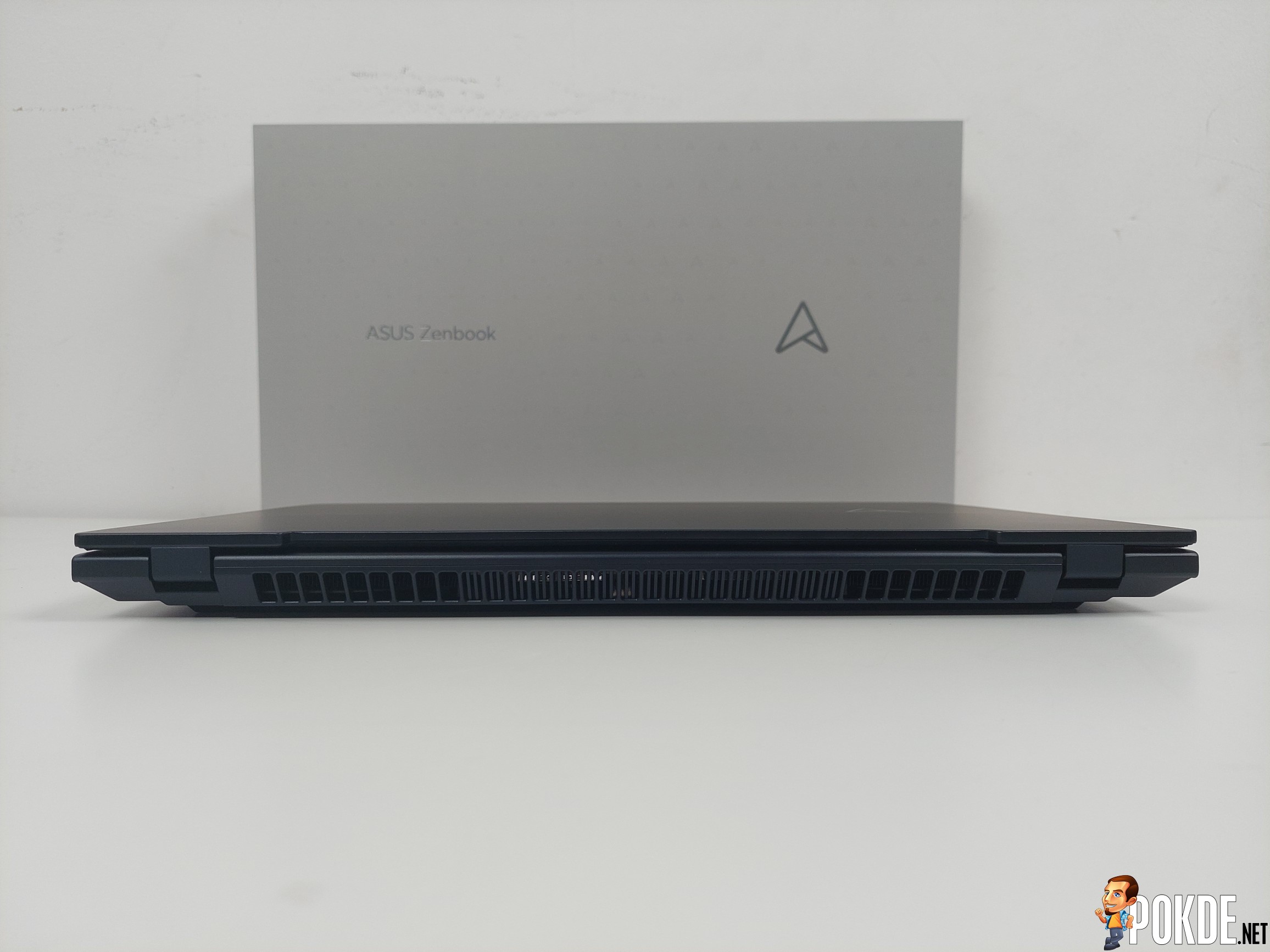
This particular Zenbook doesn’t utilize the lift hinge seen in the cheaper Zenbook models, and for good reason. The rear is entirely occupied by exhaust ports, and it does push a lot of heat if you’re cranking the power to the limit – so something like ErgoLift would get in the way. In terms of I/O, there’s your usual stuff: DC barrel jack, HDMI 2.1, USB-A, headphone jack, USB-C, Thunderbolt 4 and something creators would appreciate: UHS-II SD memory slot. Also: two indicator lights at the near end of the right side.


Specifications
ASUS Zenbook Pro 14 OLED (UX6404V-IP1100WS)
| CPU | Intel Core i9-13900H (6P+8E – 14 cores, 20 threads) |
| RAM | 32GB DDR5-4800 (16GB soldered + 16GB SO-DIMM) *Maximum supported RAM: 48GB (16GB+32GB) |
| Graphics | Integrated: Intel Iris Xe Graphics (96 EUs) Discrete: NVIDIA GeForce RTX 4070 Laptop GPU (110W TGP) GPU Multiplexer (MUX) available |
| Storage | Samsung PM9A1 SSD 1TB (MZVL21T0HCLR-00B00 – PCIe 4.0, M.2 2280) |
| Display | 14.5″ 2.8K 16:10 OLED 2880×1800@120Hz, 0.2ms response time 100% DCI-P3, 10-bit (1.07B colors) 550nits peak HDR brightness Glossy touch panel Stylus support |
| Speakers | Downward-firing stereo speakers Dolby Atmos Support |
| Webcam | 1080p, electronic webcam shutter |
| I/O |
Left:
1x DC barrel jack 1x HDMI 2.1 1x USB 3.2 Gen 2 Type-A 1x 3.5mm combo Jack Right: 1x USB 3.2 Gen 2 Type-C (DisplayPort 1.4 Alt Mode, 100W USB-C Power Delivery support) 1x Thunderbolt 4 (DisplayPort 2.1 Alt Mode, 100W USB-C Power Delivery support) 1x UHS-II SD card reader |
| Connectivity | Wi-Fi 6E, Bluetooth 5.3 (Intel AX211) |
| Battery | 76Wh 4-cell Li-ion |
| Power Supply | 200W, DC barrel jack |
| Operating System | Windows 11 Home |
| Dimensions | 321.8 x 223.3 x 17.9 mm |
| Weight | 1.65kg |
Performance

What ASUS meant by “1TB M.2 NVMe PCIe 4.0 Performance SSD” in the spec sheet is in fact a Samsung PM9A1 1TB SSD, one of the most performant OEM SSDs on the market. That’s nearly 7GB/s reads and 5.2GB/s writes – it’s not going to hold you back as far as performance go. That being said, random I/O is slightly below the figures of the Intel 660p seen in the new Zenbook S 13 OLED (though that’s a very old drive at this point), but to be fair – Intel’s SSD historically had fast I/O performance over competition.

Before delving into the numbers, let’s first clarify what kind of power profiles ASUS is offering on this laptop. There are four of them: Whisper, Standard, Performance and a ‘hidden’ Full Speed mode (we’ll explain why later). For the purpose of this review we’ll be measuring three of the four, skipping the Whisper mode – as performance differences is relatively minor on both CPU and GPU fronts.
Now back to the numbers. It’s a bit odd if you look closely – while the Zenbook Pro 14 OLED dominates the chart in multi-core performance, single core is in fact fallen behind the likes of Alienware x16 and ROG Flow Z13 (which had to contend with much tighter space and cooling constraints). We’re not sure why, and there’s plenty of retests and retries done to verify that this indeed is not a fluke – single-core is indeed slower than other Core i9-13900H laptops, for some reason.
As far as thermals go, the Zenbook handled it like an ace: there’s little to no throttling going on here, and Intel’s power boosting mechanism isn’t aggressive to the point where it’ll push as hard as thermal and power headroom allows. That being said, fans do get loud (and slightly whiny) if you push it on Performance or Full Speed modes, though that’s to be expected given the size. For reference: Full Speed cranks the fan speed all the way up to 7200RPM on both fans, non-stop. Yes, it’s very loud.

Looking at this chart of Superposition 4K numbers you may wonder, why is the gap between Standard and Performance so huge? That’s down to the way ASUS handles power on each profiles. On Standard mode, the laptop only gets 45 watts allocated to the GPU; and the number is doubled to 90W if you switch it to Performance mode. Need even more power? Full Speed mode lets the GPU push all 110W of power, for when you need the performance at all costs. Side note – Whisper mode limits the GPU to 35 watts.
As shown in the chart, it handily beat the previous-gen RTX 3070 Ti (which is one step above the stack of RTX 4070) at 90W, and extends the gap further when 110W is given to the GPU to really flex its GPU muscles. Drop the power down to 45W and you have a GPU that essentially performs like a RTX 4050 (at double the power) instead.

Same story here: given enough power to the 110W RTX 4070, it’s able to pull way ahead of all laptops we tested so far, short for the RTX 4080-equipped Alienware x16. Crank it down to a more pedestrian 45W on Standard mode and you get more or less the performance level of a full-bore RTX 4050 instead.

In terms of ray tracing, it’s once again very similar in comparison to other laptops and their respective GPUs – short for the Alienware, which extends the gap much further compared to the rasterization-based Time Spy run. That’s likely down to the core count – 58 to just 36, meaning the RTX 4080 has 61% more RT cores to work with.


While technically Zenbook Pro 14 OLED is by no means a gaming laptop – and it uses NVIDIA Studio driver at that – there’s one small detail that caught my attention when I was looking at the MyASUS software to have a look at the laptop’s feature set. Turns out this laptop comes with a MUX switch! It’s one of the very few non-gaming laptops that comes with it, making it a rare breed among laptops. (Here’s the list, in case you’re wondering.)
So that got me thinking: what if you game on it? (Or rather, what if you designed a game and wants to test it out on a bare metal hardware?) I’d suggest you just stick to Performance mode, as the framerates are pretty much night and day due to the difference in TGP limits. There’s the extra 10% to be had if you want to push it to the limit, but at that point the fans would be distractingly loud to cope with 110 watts of GPU power at disposal.

Shifting gears back to productivity stuff. Differences in scores are pretty much down to CPU and GPU performance, which generally sits well in between the cheaper LOQ 15 and the uber-expensive Alienware x16. As usual, Performance mode is the sweet spot if you’re inclined to have faster render times, for example.

Oddly enough, the Zenbook Pro 14 OLED sits generally on the lower side of this chart running PCMark 10’s Modern Office test. Despite its powerful RTX 4070 GPU, the Digital Content Creation scores has been uncharacteristically lower than Lenovo LOQ’s RTX 4050 – which we believe is the outlier of the test here. That being said, realistically all of these laptops are plenty powerful to handle any kind of task you could throw at them.

Onto the battery life test. The Zenbook Pro 14 OLED comes with 76Wh of battery onboard – quite a sizeable one given the chassis size (and all the motherboard plus cooling hardware). That nets you around 7 and a half hours of runtime – although interestingly, this laptop doesn’t have the iGPU-only mode seen in ASUS’s more gaming-centric ROG and TUF models, so there’s likely some potential lost here.
Still, you do get USB-PD charging on either the USB-C port or the Thunderbolt 4 port, so you won’t be needing to carry the 200W charging brick with you all the time, which I can assure you is very heavy compared to the laptop’s weight itself, at 1.65kg.
The Good

Perhaps the most impressive part of the Zenbook Pro 14 OLED is the sheer power it’s packed within a very small and lightweight 14-inch package. There’s 70 watts of Core i9 CPU and 110 watts of RTX 4070 GPU (with MUX) at disposal, which makes it rip through heavyweight workloads with ease. While I wish the RAM is entirely SO-DIMM, I do understand the packaging limitations meant that only one slot is available (while the other is soldered). Still, that’s up to 48GB available if you need that kind of memory for the work you do.
ASUS’s OLED panel continues to impress. The 2.8K, 120Hz panel provides plenty of colors, sharpness and speed, plus there’s touchscreen available too – so that’s another layer of control available at the creators’ disposal, on top of the DialPad (which we’ll mention in a bit). One neat feature of the OLED panel is the built-in “night mode”: if you turn the brightness all the way down, it gets extremely dark and activates orange tint to help limit blue light emissions in dark environments.
In terms of I/O, it’s solid: you get a single Thunderbolt 4 to pair it with docks or ultra high-end displays (since it supports DisplayPort 2.1), a second USB-C for less demanding hardware, HDMI 2.1; and while less elegant, there’s also a LAN dongle available. Though, it’ll occupy the sole USB-A port so best pair it with a USB-C hub if you want to keep the I/O options open. Photographers will surely appreciate the UHS-II SD card slot which supports the high-performance SD cards to enable much faster transfer speeds.

If you’ve learnt to master the ASUS DialPad’s controls (customizable through ProArt Creator Hub), it can be a very powerful tool to quickly access app-specific functions or even system-wide ones such as volume/brightness control. As pictured above, even Microsoft Edge make use of it – so you can quickly flip through each tabs as you rotate the dial. When not in use, you can simply swipe from the top right corner to turn it off so it won’t get accidentally activated (since it sits within the touchpad region).
As for sound – it’s fairly good considering its size. Mids and highs are clear and balanced, with some decent bass; though given the size limitations, the bass isn’t as “roomy” as the larger laptops which has the luxury of more space to act as a bass chamber. You can use EQ to alleviate this somewhat, but there’s no beating physics in this case. In any case, it’s more than good enough for media consumption, and you’ll likely be getting a set of cans if you’re serious about audio quality.
The Bad

On the less fortunate aspects of this laptop, there’s one that could likely make you pull your hair out: the chassis is incredibly easy to get smudged by fingerprints. I’m sure you can spot some in the image above – and that’s after wiping it with a piece of soft cloth. Perhaps a wet tissue is your only way out, but I don’t recommend this unless you know what you’re doing. (And it’ll likely get undone the second you touch it again.)
Back to DialPad again: while as I mentioned, it offers great amounts of customizability and control to the user, learning to use it is the hard part. Since it’s not tactile like a physical dial seen in ProArt laptops, rotating through options can be cumbersome if don’t have a good muscle memory to figure how far you’ll need to swipe your finger. There’s also some input lag if you’re rotating through volume or brightness as well.

Another downside is the obscurity of the ProArt Creator Hub app. There’s no software or guide that tells you right away where the app is – and I found out myself all by accident when I tapped and hold the virtual dial. You don’t have any hotkey on the keyboard either, since F12 takes you to the MyASUS app instead. Hopefully there’s a better indicator for this, otherwise first-time users wouldn’t know the app’s existence.
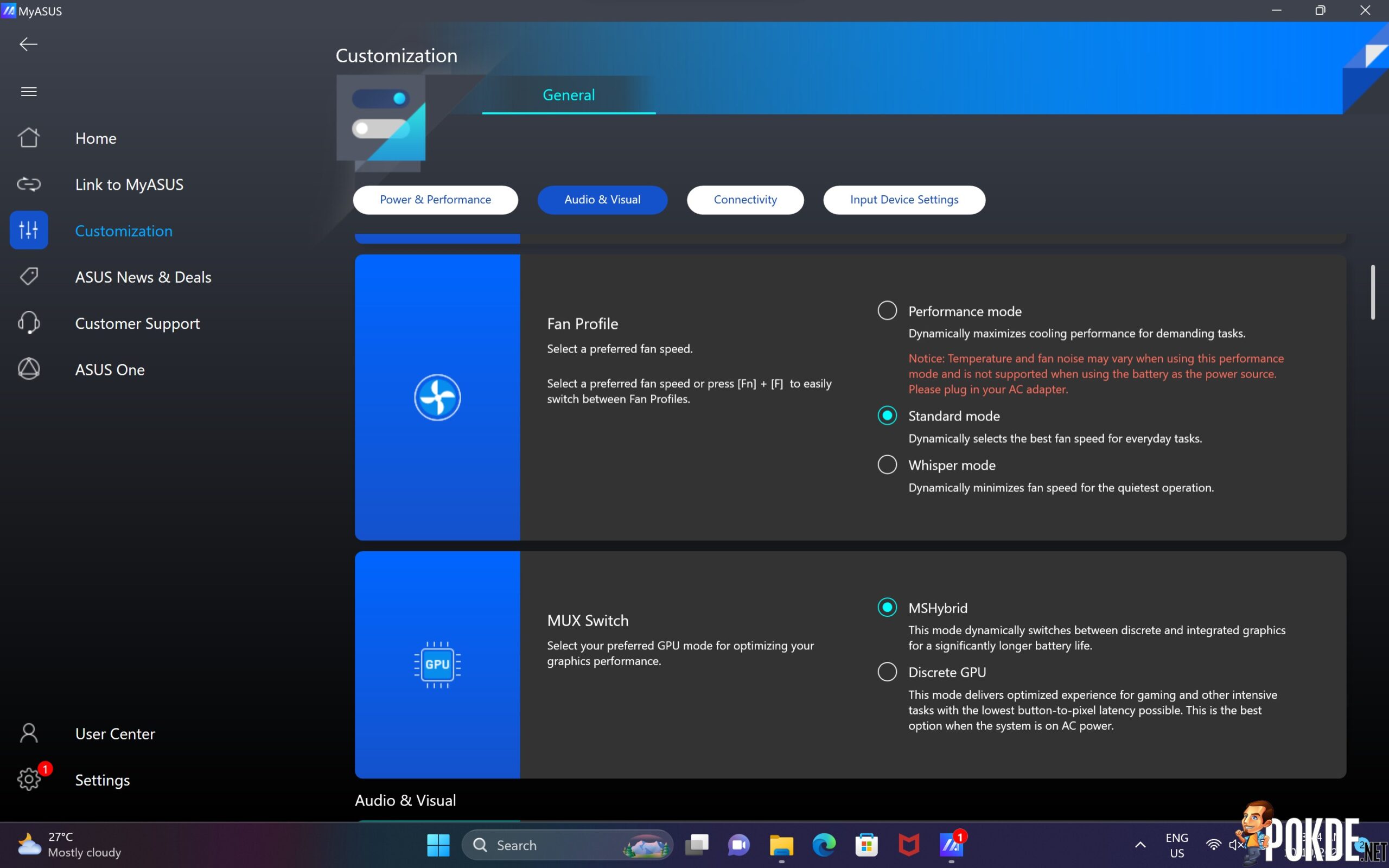
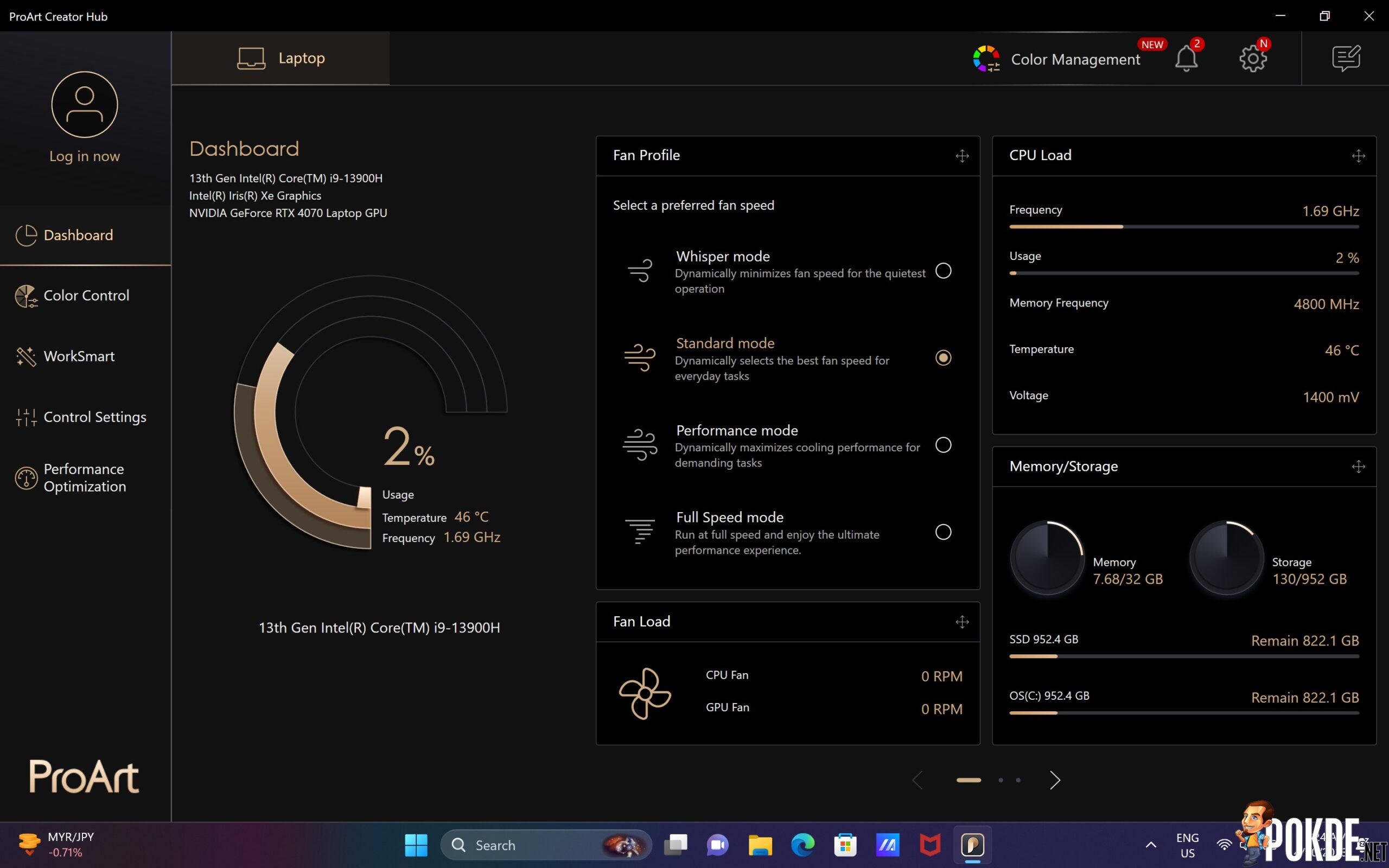
And here’s the odd part. In MyASUS, you’re offered three power profiles: Whisper, Standard and Performance. Wait – where did the ‘Full Speed’ mode in the benchmarks come from, then? Glad you asked. Turns out that power profile is exclusively hidden inside the ProArt app, and you can’t access it with the Fn+F hotkey either. The app is your only way to unlock full 110 watts of the RTX 4070 GPU, which I would’ve thought to be maxed out on 90 watts given ASUS never specified on its TGP (until I checked NVIDIA Control Panel).
Verdict

At RM10,999 – it’s not cheap by any means. You can have a RTX 4070-powered laptop for less money, but the ASUS Zenbook Pro 14 OLED proves itself to be a serious piece of kit with the features and performance on tap. It’s pretty much capable of covering any bases you can ask: graphic design? Check. Video editing? Check. 3D rendering? Sure thing. Game developing? That’ll work, too (or you can just simply game after work).
It’s going to take a lot of performance and features to really topple this Zenbook’s prowess, so for those looking for their next laptop getting creator work done: you can’t go wrong with this.

Special thanks to ASUS Malaysia for providing us the Zenbook Pro 14 OLED (UX6404) for this review.