Google Chrome Wants You To Know How Much RAM Each Tab Occupies In Real Time
Google Chrome Wants You To Know How Much RAM Each Tab Occupies In Real Time

It’s a bit of common knowledge and mostly a running joke that Google Chrome just loves chugging through your system’s RAM. Google has long been trying to slim it down wherever possible, including implementing the Memory Saver feature that puts tab to “sleep” when it’s inactive (and frees up memory). Now, the browser is seen trialing a new feature to inform users exactly how much RAM each tab is using, in real time.
I personally opt to turn off Memory Saver so that I have more responsive tab access, since I have better discipline at keeping tabs (pun intended) in check compared to most people, to be fair. But I’m running on a fairly high-end gaming laptop myself with 32GB of RAM at disposal, and this is what it looks like when you have around 10 tabs – Facebook, YouTube, Discord, Spotify, what-have-you, all fired up at the same time:

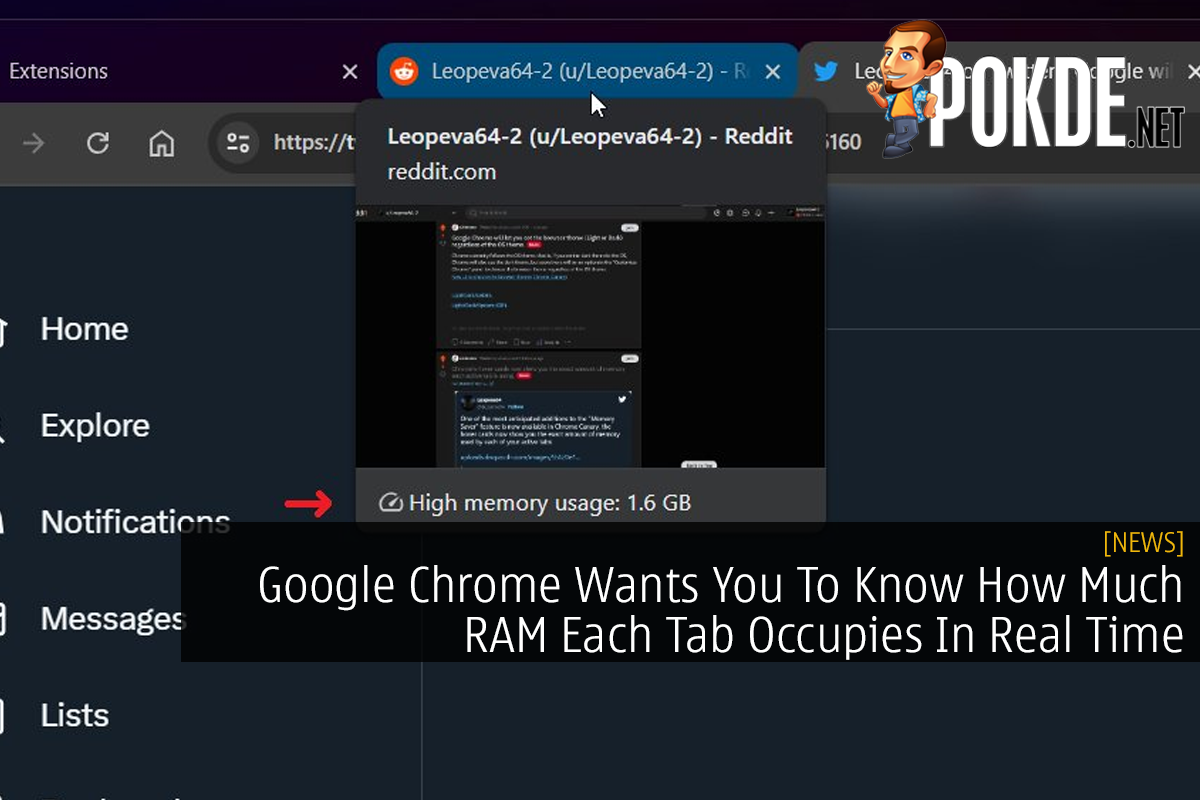
Not exactly ideal if you’re running on a relatively modest 16GB laptops, let alone those with just 8GB RAM these days. In this case, Google wants to bring the monitoring straight into browser instead of using Task Manager like I just did – it’s very simple: currently, when you hover you mouse over a tab, the browser will show you the name of the tab and the webpage preview.
The idea is to simply label the RAM usage in it – so you immediately know which one is the offending tab that keeps eating up memory and slows the whole system down. Here’s how it looks like, courtesy of user Leopeva64:
One of the most anticipated additions to the “Memory Saver” feature is now available in Chrome Canary, the hover cards now show you the exact amount of memory used by each of your active tabs:https://t.co/f160GpSO84
.https://t.co/5A5IKH01ox pic.twitter.com/EdmRNlGHdO— Leopeva64 (@Leopeva64) June 7, 2023
This is currently in testing through Chrome’s Canary channel – so it’s still very early in the development phase. However, you can already enable this feature through stable version by accessing the Flags menu, or just enter this into the web address:


chrome://flags/#memory-saver-memory-usage-in-hovercards
Select ‘Enable’, restart the browser and you’re good to go. (Although be aware there could be some anomalies – it’s within Flags for a reason.) Given its presence in the Flags this early on, one may assume it won’t take too long for the feature to be officially rolled into stable release with it enabled by default soon.
Source: Windows Central
Pokdepinion: While you technically could track down the memory hog before, you have to open up Chrome’s Task Manager (Shift+Esc) to track the process ID and find the offending tab in Windows Task Manger – good thing you won’t need to do that anymore.



![[UPDATED: Statements] Forza Horizon 6 Dev Drops Multi-Millennial Ban Hammer To Cheater Before The Game Has Even Released - 60](https://cdn.pokde.net/wp-content/uploads/2026/05/12022254/fh6leakpermabancover-420x280.jpg "[UPDATED: Statements] Forza Horizon 6 Dev Drops Multi-Millennial Ban Hammer To Cheater Before The Game Has Even Released - 61")